Keryx MCP server
Create ads from the AI app you already use.
Connect your AI app, share your product link and ask for an ad. Your finished work is saved in Keryx.
Server URL
https://app.keryxmarketing.com/mcp
Start the connection in your AI app. Keryx opens so you can sign in or create an account with Google or email. Confirm your email if asked, then approve the connection and return to your chat.
Your AI app
- Claude
- Codex
- OpenClaw
- VS Code
YouMake an ad for my photo app that shows off Magic Eraser.
MCP signed in as you
 Keryx
Keryx
- Found your product
discover_product - Wrote three ideas
start_concepts - Made the image ad
create_formats
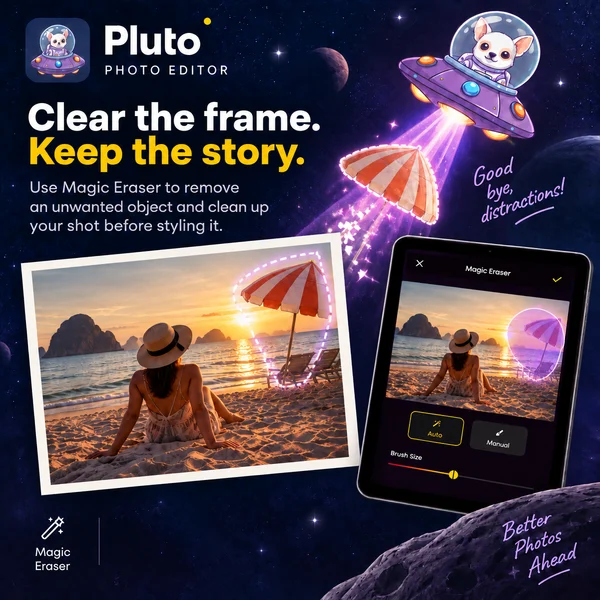
Saved in your Keryx workspace
Connect your app.
Every app uses the same server URL. Your app opens Keryx for signup or sign-in and connection approval. Your password and verification code stay on Keryx; there is no API key to copy.
Claude Web, desktop and mobile
- Open Customize, then Connectors. Select +, then Add custom connector.
- Enter Keryx as the name and paste the server URL. Leave the OAuth client ID and secret blank.
- Select Add. If Claude asks how to sign in, choose Sign in now and Register automatically.
- Select Connect, sign in to Keryx, and approve the connection.
Free plans can add one custom connector. On Team and Enterprise plans, an Owner adds Keryx under Organization settings, then members select Connect.
Claude Code Command line
claude mcp add --transport http keryx https://app.keryxmarketing.com/mcpThen run /mcp in Claude Code, choose keryx, and select Authenticate.
Codex Command line
codex mcp add keryx --url https://app.keryxmarketing.com/mcpCodex opens Keryx in your browser so you can sign in. To sign in again later, run codex mcp login keryx.
OpenClaw Command line
openclaw mcp set keryx '{"url":"https://app.keryxmarketing.com/mcp","transport":"streamable-http","auth":"oauth"}'
openclaw mcp login keryxThe second command opens Keryx in your browser so you can sign in.
VS Code GitHub Copilot
Add Keryx to .vscode/mcp.json in your project:
{
  "servers": {
    "keryx": {
      "type": "http",
      "url": "https://app.keryxmarketing.com/mcp"
    }
  }
}Start the server from that file, then sign in to Keryx when VS Code asks.
Works with Copilot Free, Pro and Pro+. On Copilot Business and Enterprise, an admin must allow MCP servers first.
ChatGPT Web, with developer mode
- In ChatGPT on the web, open Plugins, select +, then Add custom MCP server.
- Paste the server URL, choose OAuth without client credentials, and confirm that you want to continue.
- Create it as a plugin, install it, and sign in to Keryx when asked.
- In a chat, type
@Keryxand ask for an ad.
Available in Business, Enterprise and Edu workspaces after an admin turns on developer mode. On Pro, ChatGPT can only use read tools, so it can review your saved work but not create ads.
Another MCP client
Add a remote MCP server that uses Streamable HTTP, and paste the server URL. Your app should open Keryx so you can sign in.
Keryx signs apps in with OAuth, using dynamic client registration and PKCE, and returns to an https or localhost address. Cursor and Gemini CLI can’t connect yet.
Ask for what you need.
Your app chooses the Keryx tools for each request. A few to start with:
- Create an ad for my product at [website or store link]. Choose an approach and show me the finished ad.
- Add my app’s App Store link to Keryx and suggest three ad ideas.
- Turn the second idea into an image ad and a carousel.
- Revise the image: use a shorter headline and show the editing screen.
You stay in control.
- You approve each app
- Keryx shows which app is asking and what it will be able to do before you connect.
- Ad creation uses your credit
- Ideas and finished ads use Keryx credit at the same prices as the website. Reading your saved work is free. See pricing
- No campaign launches
- A connected app can create and revise ads. It can’t launch campaigns or spend ad budget; you launch from Keryx when you’re ready.
- Retries don’t charge twice
- If a response is lost, repeating the exact request and its request key keeps the same work without charging twice.
- Disconnect anytime
- In Keryx, open your account menu and choose Connections to see or remove connected apps.
For developers.
The server speaks Streamable HTTP and signs apps in with OAuth 2.1. These 25 tools use the same services as the website:
get_account- Your account and workspace.
list_products- The products already in your workspace.
get_product- One product’s saved details.
discover_product- Research a website, App Store or Google Play link.
get_product_discovery- The result of that research.
add_product- Add the product once you confirm it’s yours.
get_creative_workspace- Saved ideas, ads, revisions and progress.
show_creative- View selected saved ads in a portable preview, with the same work available in Keryx.
resume_operation- Resume exact saved work when its saved capabilities offer it.
start_concepts- Create three ad ideas from your product and direction.
add_concept- Create one ad idea, or start from your own finished image or video.
approve_concept- Approve an exact saved idea. Creating formats includes this step.
remove_concept- Remove a saved idea.
restore_concept- Restore a removed idea.
iterate_concept- Revise a saved idea.
branch_concept- Create an independent idea variation.
revert_concept- Return to an earlier idea version.
create_formats- Create the requested images, carousels, short videos or text ads.
revise_output- Revise an exact finished ad.
save_search_ad- Save supplied Google Search copy and keywords as a new ad, keeping the source ad and destination.
start_output_from- Create an ad variation from a saved version.
finalize_platforms- Prepare saved ads for the requested platforms and destination.
create_media_upload- A private upload link for a finished image or video ad you made.
get_campaign_results- Saved campaign results across your products.
get_creative_media- A short-lived preview link for a finished ad.
Prefer plain HTTP? The same operations are a REST API. Read the API and MCP guide or the OpenAPI document.
Starting from the website? The agent index links to connection instructions and the first-ad guide.
Questions.
Do I need a Keryx account?
Your app works in your own Keryx account. Create one during the connection with Google or email/password, including email verification if needed. You return to the connection with $25 in starter credit. Existing accounts keep their products and saved work.
What does it cost?
Connecting is free. Ideas and finished ads use Keryx credit at the same prices as the website. Your AI app’s own plan is separate.
Can a connected app launch campaigns?
No. Connected apps create and revise ads. You choose budgets and launch campaigns in Keryx.
Which apps can connect?
Apps that support remote MCP servers with OAuth sign-in. The steps above cover Claude, Claude Code, Codex, OpenClaw, VS Code and ChatGPT. Cursor and Gemini CLI can’t connect yet.
Connection help.
For help connecting an app or finding your saved work, contact hello@keryxmarketing.com. Include the client name, approximate time and any request identifier shown with the error. Do not send passwords, access tokens or verification codes.
Make your next ad from chat.
$25 in Keryx credit, on us. Ad spend is separate.
Connection steps